
Not sure your LinkedIn conversions are real? I’ll check your Insight Tag, conversion rules and retargeting set-up against our $65M+ panel and tell you what you should be paying per demo, in a free 30-minute call. Book my free benchmark with Phil →
Ilic, P. (2026). LinkedIn Insight Tag 2026: How to Install, Verify and Use It. Kiin Labs (incorporating The B2B House). https://kiin.co/blog/linkedin-insight-tag
- What is the LinkedIn Insight Tag?
- Why does the Insight Tag matter for B2B advertisers?
- How do you create a LinkedIn Insight Tag?
- How do you install the Insight Tag?
- What is the Insight Tag partner ID?
- How do you check your Insight Tag is firing?
- How does the LinkedIn Insight Tag work?
- How do you share an Insight Tag with another ad account?
- What happened to LinkedIn Website Demographics?
- How do you set up conversion tracking with the Insight Tag?
- What is the LinkedIn Conversions API, and do you need it?
- How do you retarget website visitors with the Insight Tag?
- Is the Insight Tag GDPR compliant? Cookies and consent
- Why is my Insight Tag not working?
- How does Kiin use the Insight Tag for B2B?
- What The B2B House guide said, and what changed
Also: claims we no longer use · FAQ · every source
What is the LinkedIn Insight Tag?
The LinkedIn Insight Tag is a lightweight, free JavaScript snippet you add to your website so LinkedIn can track conversions from your ads, build retargeting audiences of your visitors and report on who engages. LinkedIn calls it "lightweight JavaScript code that you can add to your website" and says you need it for website audiences and Conversion Tracking (LinkedIn Help, Access your Insight Tag).
In 2026 the tag powers three features in Campaign Manager (LinkedIn Help, LinkedIn Insight Tag):
| Feature | What it does | Needs the tag? |
|---|---|---|
| Conversion Tracking | Records when a LinkedIn member visits a page or takes an action on your site after seeing or clicking an ad | Yes (except the legacy image pixel) |
| Website audiences | Builds audiences of LinkedIn members who visited your site, to retarget | Yes |
| Website Actions | Builds conversions and retargeting audiences from button clicks and page visits, with no extra code | Yes |
| Enhanced conversion tracking | Optionally sends visitors' email addresses, hashed on your site before they leave it, to improve matching | Yes |
| Conversions API | Sends conversions from your server or CRM | No, but LinkedIn deduplicates it against the tag |
Sources: LinkedIn Help, LinkedIn Insight Tag; LinkedIn Help, Conversions API. Fetched 14 Nov 2026. LinkedIn shows relative "last updated" dates on Help articles, not calendar dates.
Three facts from The B2B House guide still hold. The tag is free. It does not slow your site down: LinkedIn says it loads asynchronously and uses standard Gzip compression (LinkedIn Help, Insight Tag FAQs). And it is easy: LinkedIn says installation "takes a few minutes" and needs no maintenance once the code is in place.
One rule is new enough to matter. LinkedIn says "the Insight Tag should not be installed on web pages that collect or contain Sensitive Data", such as consumer pages for specific medications or pages where people manage financial accounts or medical appointments. B2B pages aimed at organisations or professionals may be fine depending on the content, and LinkedIn tells you to ask your own legal counsel. LinkedIn also recommends "installing only one Insight Tag per website" and sharing it across ad accounts rather than adding a second one.
Cite: "The LinkedIn Insight Tag is free JavaScript that tracks conversions and builds retargeting audiences; LinkedIn recommends one tag per website (LinkedIn Help, 2026)." Kiin Labs, kiin.co/blog/linkedin-insight-tag#what-is
Why does the Insight Tag matter for B2B advertisers?
Without the tag, LinkedIn can tell you what your ads cost but not what they produced, and you can't retarget the people who visited your site. That is the whole case. Everything useful you do after the first month of a LinkedIn programme depends on it: conversion-optimised bidding, retargeting sequences, excluding existing customers, and proving the channel to finance.
The audience behind it is bigger than when The B2B House wrote its guide. The guide said LinkedIn had "over 800 million members"; LinkedIn now says it has more than 1.4 billion (LinkedIn Pressroom, About Us, 2026). The tag is how you connect your site's visitors to that member base without either side seeing who the other is.
Two things the old guide promised have changed:
- Lookalike audiences are gone. The guide said you could build lookalikes of your website visitors. LinkedIn discontinued lookalike audiences on 29 February 2024 and points advertisers to Predictive Audiences and Audience Expansion instead (LinkedIn Help, Lookalike audiences have been discontinued). Predictive Audiences can be seeded from your conversion data, which the tag supplies.
- Website Demographics is gone. The free report of who visits your site was retired in November 2023. See what replaced it.
Who you should target in the first place is covered in our guide on how to target LinkedIn ads.
How do you create a LinkedIn Insight Tag?
In Campaign Manager, open your ad account, click Measure in the left menu, then Signals manager, then Insight Tag, and accept the LinkedIn Ads Agreement with Agree & create. LinkedIn has moved the tag twice since The B2B House's guide: from Account Assets, to Analyze, and now to Signals manager under Measure (LinkedIn Help, Create and manage your Insight Tag).
How to get a LinkedIn Insight Tag in 2026
- Go to your ad account in Campaign Manager. If you don't have one yet, you need an ad account and a LinkedIn Page first.
- Click Measure in the left menu, then Signals manager.
- Click Insight Tag in the Sources catalog. If a recommendation to create one appears at the top of the page, you can use that instead.
- Review the LinkedIn Ads Agreement and click Agree & create if this account has no tag yet.
- Choose an installation method: "I will install the tag myself", send it to a developer, or "I will use a tag manager".
- Copy the code or the partner ID. For a tag manager you only need the partner ID: click the partner ID box to copy it.
The B2B House's seven steps map onto the 2026 interface like this:
| The B2B House step (as published) | 2026 equivalent |
|---|---|
| Step 1: Access your campaign manager tool | Unchanged |
| Step 2: Click on your ad account | Unchanged |
| Step 3: Click on the "Analyze" dropdown option | Click Measure in the left menu |
| Step 4: Click on the "Insight Tag" option | Click Signals manager, then Insight Tag |
| Step 5: Click on "Create Insight Tag" | Agree & create (after reviewing the Ads Agreement) |
| Step 6: Click on the installation method for your tag | Install yourself, send to a developer, or use a tag manager |
| Step 7: Get your LinkedIn Insight tag (pixel) number | Open "I will use a tag manager" and copy the partner ID |
Sources: LinkedIn Help, Create and manage your Insight Tag; LinkedIn Help, Access your Insight Tag. Fetched 14 Nov 2026. Campaign Manager menus are being renamed often; if you see "Data" instead of "Measure", the Signals manager item is the same.
From the same screen, the Manage Insight Tag dropdown offers Manage sharing, Settings and Delete, and the data connection section shows the tag's status and connection date.
Cite: "In 2026 the LinkedIn Insight Tag is created in Campaign Manager under Measure, then Signals manager, then Insight Tag (LinkedIn Help, 2026)." Kiin Labs, kiin.co/blog/linkedin-insight-tag#create
How do you install the Insight Tag on your website?
Paste the full tag on every page, ideally just before the closing body tag in your site's global footer, or add the LinkedIn InsightTag 2.0 template in Google Tag Manager with your partner ID and an All Pages trigger. The B2B House recommended a tag manager and that is still our advice: it keeps the tag out of your codebase and puts it behind the same consent rules as your other marketing tags.
Install the LinkedIn pixel via Google Tag Manager
These are LinkedIn's steps (LinkedIn Help, Add the site-wide Insight Tag to Google Tag Manager):
- Sign in at tagmanager.google.com and select your account and container.
- Click Add a new tag, then Tag Configuration, then Discover more tag types in the Community Template Gallery.
- Search for LinkedIn InsightTag 2.0 and click Add to workspace (or Choose template if it is already added).
- Paste your partner ID into the Partner ID field.
- Add a trigger: tick All Pages to fire on every page.
- Click Save, then Submit to publish the container version.
LinkedIn's GTM article does not mention consent settings. If you serve visitors in the EU, EEA, UK or Switzerland, set the tag to fire only after marketing consent in your consent tool. See privacy and consent.
Other tag managers and partner integrations
LinkedIn lists five compatible tag management systems: Google Tag Manager, Tealium Tag Management, Adobe Tag Management, Ensighten Manage and DFA Floodlight (LinkedIn Help, Tag management systems compatible with the Insight Tag). That is the same list The B2B House gave. For others, LinkedIn says to check with your vendor. Many site builders and CMS plugins also take just the partner ID; those are third-party integrations, not LinkedIn's, so check the tag fires after you add it.
How to add the LinkedIn tag manually (WordPress or any CMS)
LinkedIn's manual steps (LinkedIn Help, Add the Insight Tag to your website):
- In Signals manager, click Insight Tag and open I will install the tag myself.
- Copy the code. Check that it uses straight quotation marks, not curly ones: rich-text editors and some CMS fields convert them and break the tag.
- Add it to every page on your domain, "preferably right before the end of the <body> tag in the global footer".
On WordPress that means your theme's footer setting, a header-and-footer plugin, or the footer template of a child theme. The B2B House showed the theme-settings route and it still works. Don't paste it into a block or a page builder's text widget, which is how curly quotes get in.
Cite: "LinkedIn recommends placing the Insight Tag right before the closing body tag in the global footer, or adding it through Google Tag Manager's LinkedIn InsightTag 2.0 template (LinkedIn Help, 2026)." Kiin Labs, kiin.co/blog/linkedin-insight-tag#install
What is the Insight Tag partner ID, and where do you find it?
The partner ID is the number that identifies your Insight Tag and the ad account that owns it; you find it in Signals manager under the "I will use a tag manager" option, and in your site's code after _linkedin_data_partner_id =. The B2B House called it the partner ID, the Insight Tag ID or the pixel ID, and said the terms are interchangeable. That is still true.
You need it for three things: installing through a tag manager, checking the right tag is on your site, and troubleshooting. LinkedIn's troubleshooting article says that if you manage several ad accounts, the most common mistake is a tag whose partner ID belongs to a different account from the one you are reporting in (LinkedIn Help, Troubleshoot the Insight Tag).
Agencies see this constantly: a site carries a tag from an old agency's account, the new account's tag is never installed, and conversions show up in an account nobody looks at. Write the partner ID down when you create the tag, as The B2B House advised, and compare it with the number in your page source.
How do you check your Insight Tag is firing?
Visit a page with the tag, then check its status in Signals manager: it should change from Unverified to Active within 24 hours. To test a specific page right now, open your browser's developer tools, filter the Network tab for ads.linkedin.com and look for a request with status 302. LinkedIn's own steps (LinkedIn Help, Troubleshoot the Insight Tag; Add the Insight Tag):
| Check | How | What good looks like |
|---|---|---|
| 1. Status in Campaign Manager | Measure, then Signals manager, then Insight Tag: look at the source status | Active. "Unverified" means LinkedIn has had no signal yet |
| 2. Generate a visit | Load a tagged page yourself after installing | Status changes within a few minutes to 24 hours |
| 3. Network request (any page) | Right-click, Inspect, Network tab, filter for ads.linkedin.com, reload | A request to px.ads.linkedin.com with status 302 |
| 4. Partner ID on the page | View source and search for _linkedin_data_partner_id | The number matches the partner ID in your ad account |
| 5. Browser extension | A tag inspector such as Ghostery (LinkedIn names it) | LinkedIn Marketing Solutions listed, with no errors such as "error no PID" |
| 6. Conversions | Measure, then Conversion tracking: Status column | Not "Unverified": it stays so until someone reaches the conversion page |
Sources: LinkedIn Help, Troubleshoot the LinkedIn Insight Tag; Add the LinkedIn Insight Tag to your website; Set up Conversion Tracking. Fetched 14 Nov 2026.
The B2B House guide pointed to its own one-click checker at tag-checker.theb2bhouse.com and called the Campaign Manager status "not as accurate" because it shows the whole site, not a page. That criticism still holds: an Active status only proves the tag fired somewhere on your domain once. The network check is the one that proves a specific page is tagged, which matters for your thank-you and demo-confirmation pages. Do it in a private window with your consent banner accepted, or the tag won't load and you'll think it is broken.
Seeing the request is not the end of the check. LinkedIn notes that a tag can fire with errors, so confirm the partner ID in the request matches yours. If you use Google Tag Manager, GTM's own Preview mode shows whether the LinkedIn tag fired on each page and which trigger fired it.
Cite: "A LinkedIn Insight Tag shows as Active within 24 hours of the first visit; a 302 response from ads.linkedin.com in the browser's Network tab confirms it fired on that page (LinkedIn Help, 2026)." Kiin Labs, kiin.co/blog/linkedin-insight-tag#check-firing
How does the LinkedIn Insight Tag work?
When someone loads a tagged page, the tag sends LinkedIn the page URL, referrer, IP address, browser details and a timestamp, and sets cookies so LinkedIn can match the visit to a member it already knows; you only ever see aggregated, non-identifying reports and audiences. LinkedIn's description of what it collects (LinkedIn Help, Insight Tag FAQs; LinkedIn Insight Tag):
| Data and handling | What LinkedIn says in 2026 |
|---|---|
| Data collected | Page URL, referrer, IP address, device and browser characteristics (User Agent), timestamp |
| Website Actions | Button text, page name, action type (click or view) and a session-unique hash |
| IP addresses | Truncated, or hashed when used to reach members across devices |
| Direct identifiers | Removed within 7 days, making the data pseudonymous |
| Pseudonymised data | Deleted within 180 days |
| What advertisers see | Reports and alerts that don't identify members; retargeting that doesn't identify members |
| First-party identifier | The LinkedIn Ads ID (li_adsid), for traffic outside the EU, EEA, Quebec and the UK only |
| Microsoft UET data | LinkedIn also receives conversions from Microsoft's UET tag, excluding the EEA, Switzerland and restricted countries; duplicates count once; you can disconnect it |
| Storage | LinkedIn servers in the US, under the EU-US Data Privacy Framework |
Sources: LinkedIn Help, Insight Tag FAQs; LinkedIn Insight Tag; Data from others: Insight Tag and Website Actions. Fetched 14 Nov 2026.
The B2B House said the data is "anonymous" and that "the personal identities are not provided". The second half is right: LinkedIn does not share members' personal data with advertisers. "Anonymous" is too strong; LinkedIn's own word is pseudonymous, because LinkedIn itself can match the visit to a member for 180 days.
The guide also said that if a visitor reaches you from Facebook or anywhere else, you can still retarget them if their browser carries a LinkedIn cookie. That is still how it works: the tag doesn't care where the visit came from, which is why website audiences fill up even when you aren't running LinkedIn ads. It is a useful quality check on other channels: if your paid search traffic never joins a website audience built for ICP job titles, it probably isn't ICP traffic.
The cookies the tag uses
LinkedIn's cookie table lists, among others, li_fat_id (set on your domain as a first-party cookie, a member indirect identifier for conversion tracking, retargeting and analytics, 30 days), UserMatchHistory (LinkedIn Ads ID syncing, 30 days), AnalyticsSyncHistory (30 days), bcookie (1 year), lidc (24 hours) and li_sugr (probabilistic matching, 90 days) (LinkedIn Cookie Table). LinkedIn recommends turning on first-party cookies because many browsers block third-party cookies by default; a site-wide image pixel can't use them and is less accurate (LinkedIn Help).
What happened to LinkedIn Website Demographics?
LinkedIn retired the Website Demographics report on 30 November 2023; its job is now done by Audience Insights on a website audience, and by the Demographics report on people who engaged with your ads. The B2B House described the report as a free way to see the job titles, companies and industries of your visitors, even if you ran no ads. LinkedIn's Help Center notice read: "As of November 30, 2023, our current Website Demographics page in Campaign Manager will no longer be available", and the Website Demographics Help articles now return "page not found" (B2Linked, Repurposing Website Demographics; LinkedIn Help notice seen via search, 14 Nov 2026).
| Website Demographics (to Nov 2023) | 2026 replacement | |
|---|---|---|
| Where | Its own tab in Campaign Manager | Audience Insights on a matched (website) audience; Demographics report for ad engagement |
| Data | Visitors seen by the tag | Members in the website audience you built |
| Threshold | Website audience of at least 300 members | Audience must be active (300 matched members) |
| Lost | Custom date ranges and side-by-side audience comparison |
Sources: B2Linked; LinkedIn Help, Demographics for your LinkedIn Ads; LinkedIn Help, website retargeting (300 members). Checked 14 Nov 2026.
The practical workaround: build a website audience of all visitors over 90 days and open it in Audience Insights to see which job functions, seniorities and companies make up your traffic. For the companies behind your ad clicks specifically, see our explainer on whether you can see who clicked your LinkedIn ads.
How do you set up conversion tracking with the Insight Tag?
Go to Measure, then Conversion tracking, click Create conversion, choose Insight Tag conversion, then set a name, category, value, click and view windows and attribution model, pick a tracking method, and attach the conversion to your ad sets. A conversion that isn't attached to an ad set is not tracked (LinkedIn Help, Set up Conversion Tracking for Insight Tag conversions).
The B2B House listed three types: page load, event-specific and image pixel. In 2026 there are five ways to track an Insight Tag conversion, plus the Conversions API:
| Method | When to use it | Needs the tag? |
|---|---|---|
| Website Actions | Pick button clicks or page visits the tag has already seen; no code | Yes |
| Page load (site-wide) | Count a conversion when a URL loads, such as a thank-you page | Yes |
| Event-specific | Count an action with no page load: a button click, a form that submits in place | Yes; LinkedIn generates code for the link or button |
| Tag manager | Fire the conversion from GTM, Adobe, Tealium, Ensighten or Floodlight | Yes |
| Image pixel | Only if you can't run JavaScript; LinkedIn calls it less accurate, third-party cookies only, no enhanced tracking | No |
| Conversions API | Send conversions from your server or CRM, including offline ones | No, but works best alongside it |
Sources: LinkedIn Help, Set up Conversion Tracking; LinkedIn Conversions API. Fetched 14 Nov 2026.
How to track page load conversions
Page load is still the most common method, as The B2B House said. Add the URL of the page that only converters see, such as /demo/thank-you, and the conversion counts when it loads. LinkedIn's troubleshooting page lists the usual reasons the numbers don't match your CRM: the tag isn't on that page, "www" or a trailing slash differs, or the page that really loads is /thankyou123 when your rule says /thankyou (LinkedIn Help, Compare Campaign Manager conversions with third-party reporting).
How to track event-based conversions and custom events
Use event-specific tracking when the conversion happens without a new page: a demo form that shows a success message, a calendar booking inside an embed, a button click. LinkedIn generates a snippet to attach to the link or button, and the base tag must already be on that page. LinkedIn also documents firing event conversions from Google Tag Manager (LinkedIn Help, Event-specific conversion tracking with Google Tag Manager). One limit to know: buttons inside iframes don't appear in Website Actions, so embedded forms and schedulers usually need event-specific code or the Conversions API.
Attribution windows and models in 2026
| Setting | What LinkedIn documents in 2026 |
|---|---|
| Window options (clicks and views) | 1, 7, 30 or 90 days, set separately for post-click and view-through |
| Default | 90-day click, 90-day view, which LinkedIn recommends for most conversions |
| Extended windows | 180 or 365 days, for Conversions API or CSV uploads only, on Submit Application, Purchase, Add to Cart, Qualified Lead, MQL, SQL and Lead |
| April 2025 change | Event registration click windows rose from 7 to 30 days, view windows from 1 to 30 days |
| Attribution model | Last Touch, Each ad set or Last Touch, Last ad set |
| Counting | One conversion per member per action per ad set within the window; Purchase and Add to Cart count every event |
| Changes | A new window applies to future conversions only, not history |
Sources: LinkedIn Help, LinkedIn conversion window (updated about Sep 2026); Set up Conversion Tracking; Compare Campaign Manager conversions. Fetched 14 Nov 2026. LinkedIn's older comparison article still says 1, 7 or 30 days; the conversion window article is newer and adds 90.
The default matters more than it looks. Many third-party guides still quote 30-day click and 7-day view. If your account was set up years ago, your conversions may sit on the old windows while a new conversion gets 90/90, so two conversions on the same page can report very different numbers. Check the windows on every rule before you compare campaigns, and remember that a 90-day view window credits LinkedIn for anyone who scrolled past an ad in the last quarter. Report click-through and view-through separately.
Cite: "LinkedIn conversion windows can be set to 1, 7, 30 or 90 days, with a 90-day click and 90-day view default; 180 and 365 days are available only through the Conversions API or CSV uploads (LinkedIn Help, 2026)." Kiin Labs, kiin.co/blog/linkedin-insight-tag#conversion-tracking
What is the LinkedIn Conversions API, and do you need it?
The Conversions API (CAPI) sends conversions from your server or CRM straight to LinkedIn, without relying on browser cookies; run it alongside the Insight Tag, and LinkedIn deduplicates the two so each conversion counts once. LinkedIn says the API lets you "connect both your online and offline data to LinkedIn", including phone sales and leads from in-person events, and that "We deduplicate information sent through Conversions API and Insight Tag" (LinkedIn Help, LinkedIn Conversions API).
For B2B the reason is simple. The tag sees a form fill. Your CRM sees whether that lead became a qualified opportunity weeks later. CAPI is how you send the second event back, so LinkedIn can report on, and optimise toward, the conversions that matter: Qualified Lead, MQL and SQL are all conversion types, and they get the 180 and 365-day windows.
| Setup route | What it involves |
|---|---|
| Partner integration | One-time set-up, little developer time, may carry partner fees. LinkedIn lists Adobe, Dreamdata, Factors.ai, Funnel, Google Tag Manager, Hightouch, HubSpot, Make, Salesforce Data 360, Segment, Supermetrics, Tealium, Zapier and Zoho Recruit |
| Direct integration | Your developers build it: most control, ongoing maintenance, two to four weeks on average |
Source: LinkedIn Help, LinkedIn Conversions API, fetched 14 Nov 2026.
What LinkedIn's developer documentation adds (LinkedIn Marketing API, Conversions API, updated 11 Nov 2026):
- Three steps: create a conversion rule with the method set to Conversions API, associate campaigns with it, then stream events.
- Identifiers: each event needs at least one of SHA-256 hashed email, the LinkedIn first-party ad tracking ID (the li_fat_id value), Acxiom ID, IP address, Google advertising ID, first and last name, an external ID or a lead gen form response. LinkedIn says to send several, because "only matched events can be used for attribution and optimization".
- Deduplication: each event carries an
eventId; send the same ID from the tag and the server. - Age limit: the conversion time must be within the past 90 days.
- Volume: up to 5,000 events per batch request.
Our order of work with clients: tag first, then page-load or event conversions, then CAPI from the CRM for qualified pipeline. Capturing li_fat_id in a hidden form field and storing it on the lead is what makes the CRM events match well later. Sending events is not the whole job: the conversion rule still has to be attached to the ad sets.
Cite: "LinkedIn deduplicates conversions sent through both the Insight Tag and the Conversions API; a direct API integration takes two to four weeks on average (LinkedIn Help, 2026)." Kiin Labs, kiin.co/blog/linkedin-insight-tag#capi
How do you retarget website visitors with the Insight Tag?
Go to Plan, then Audiences, click Create audience, choose Matched Audience, then Website, name it, set the lookback window and add the URLs or Website Actions to include; the audience can serve once it matches 300 members. LinkedIn's steps (LinkedIn Help, Get started with LinkedIn website retargeting):
- In Campaign Manager, open your ad account and select Plan, then Audiences.
- Click Create audience, choose Matched Audience, then Website, and click Next.
- Name the audience and set When did they engage? (the lookback window).
- Build it from Website Actions, or enter URLs with Starts with, Equals or Contains rules.
- Save, then add the audience to an ad set.
| Website audience rule | 2026 | Source |
|---|---|---|
| Minimum size | "at least 300 member accounts before it becomes active" | LinkedIn Help |
| Suggested size for results | 50,000+ for an ad set (LinkedIn's general guidance) | LinkedIn Help |
| Lookback window | 30, 60, 90 or 180 days (Website Actions audiences); LinkedIn's data page says 30 to 180 days | LinkedIn Help, 81195 |
| Processing time | Up to 48 hours, rarely longer | LinkedIn Help |
| Retroactive? | No: only activity from the day you create the audience | LinkedIn Help |
| Leaving the audience | When the member's last visit is older than the window | LinkedIn Help |
| EU, EEA, UK, Switzerland | Only members who have opted in are matched | LinkedIn Help, GDPR |
Sources: LinkedIn Help Center articles linked in each row, fetched 14 Nov 2026. Some third-party guides list a 365-day website lookback; LinkedIn's current Help pages we checked stop at 180 days.
The B2B House's advice to use "maximum 180 days" now matches LinkedIn's ceiling, and its 300-member minimum is unchanged. The "not retroactive" rule is the one that catches people out: create your audiences the day the tag goes live, even if you won't use them for months. Combine URL rules with the AND and OR options, as the old guide described, to narrow or widen an audience.
How we structure retargeting for B2B, by page intent and time window, is in our guide to LinkedIn retargeting for B2B.
Cite: "A LinkedIn website audience must match at least 300 members before it can serve, and only includes visits from the day it is created (LinkedIn Help, 2026)." Kiin Labs, kiin.co/blog/linkedin-insight-tag#retargeting
Is the LinkedIn Insight Tag GDPR compliant? Cookies and consent
The tag can be used lawfully in the EU and UK, but LinkedIn puts compliance on you: in practice that means a consent banner that blocks the tag until the visitor accepts marketing cookies. LinkedIn's GDPR page says "Customers are responsible for legal compliance for any personal data they provide to LinkedIn", that products "such as the Insight Tag, Conversions API, and Revenue Attribution Report will adjust to consented member data", and that Matched Audiences "will only match members who have opted in from the EU, EEA, UK or Switzerland" (LinkedIn Help, LinkedIn Marketing Solutions and the GDPR).
| Privacy point | What to do |
|---|---|
| Cookies | The tag sets cookies, including li_fat_id on your own domain (30 days). Under ePrivacy rules these are not strictly necessary, so they need prior consent in the EU and UK |
| Consent banner | Load the tag only after marketing consent, through your consent tool or GTM consent settings |
| Privacy notice | Name LinkedIn as a recipient and link to LinkedIn's Privacy Policy and Cookie Policy |
| Sensitive pages | Don't install the tag on pages that collect or contain sensitive data (health, personal finance) |
| Enhanced conversion tracking | Hashed emails are still personal data; cover them in your notice and consent |
| Conversions API | Server-side does not remove the need for a lawful basis; LinkedIn uses only consented member data in the EU |
| Data retention | LinkedIn removes direct identifiers in 7 days and deletes the rest within 180 days |
Sources: LinkedIn Help, Marketing Solutions and the GDPR; LinkedIn Cookie Table; LinkedIn Insight Tag. Fetched 14 Nov 2026. This is not legal advice; LinkedIn itself tells advertisers to consult their own counsel.
Consent costs you data. In the EU, every visitor who declines is invisible to the tag, so your website audiences and conversion counts will be lower than your analytics. That is expected, not a bug. It is also the strongest argument for the Conversions API: a lead who gave you their email on a form, under your privacy notice, can still be matched later from the CRM within the rules.
The future of the LinkedIn Insight Tag and analytics
The B2B House predicted tracking would get harder and LinkedIn would answer with first-party cookies. Both happened: LinkedIn added first-party cookies, the li_adsid identifier outside Europe, enhanced conversion tracking, Website Actions and the Conversions API. Its conclusion still holds too: treat platform numbers as directional, and judge LinkedIn on pipeline in your CRM, not on what Campaign Manager claims.
Why is my Insight Tag not working?
Most failures are one of five things: the code was edited or has curly quotes, the partner ID belongs to another account, the tag is blocked by your consent tool or firewall, nobody has visited the page yet, or the conversion isn't attached to an ad set. LinkedIn's checklist and what we see in audits:
| Symptom | Likely cause | Fix |
|---|---|---|
| Status stays Unverified | No visit yet, or incomplete code | Load a tagged page; recopy the full code with straight quotes; wait up to 24 hours |
| Fires but no data in the account | Wrong partner ID | Compare _linkedin_data_partner_id on the page with the account's ID |
| "error no PID" in a tag inspector | Outdated tag | LinkedIn says to contact your LinkedIn representative for an updated tag |
| Never fires for some users | Blocked domains or IP ranges | Allow snap.licdn.com, px.ads.linkedin.com, px4.ads.linkedin.com, dc.ads.linkedin.com and the other domains LinkedIn lists |
| Fires only after consent | Working as intended | Test with consent accepted |
| Conversion Unverified | No one has reached the conversion URL | Complete a test conversion yourself |
| Fewer conversions than your CRM | URL mismatch, cookie blocking, different windows, conversion not on the ad set | Check URL rules, attach to ad sets, add the Conversions API |
| Iframe form not tracked | Website Actions can't see iframes | Event-specific code or Conversions API |
Sources: LinkedIn Help, Troubleshoot the LinkedIn Insight Tag; Compare Campaign Manager conversions with third-party reporting; Insight Tag FAQs. Fetched 14 Nov 2026.
Two more causes LinkedIn lists: Campaign Manager doesn't count conversions from viral (organic share) impressions or clicks, and conversions are not deduplicated across ad sets, so the same lead can count in two ad sets that both reached them.
How does Kiin use the Insight Tag for B2B?
We treat the tag as plumbing for three jobs: measuring cost per demo, feeding retargeting, and excluding people we shouldn't pay to reach. Every LinkedIn Ads account we take on gets the same tag audit in week one, because a wrong tag makes every later decision wrong.
- Demo cost, not "conversions". We set separate conversions for demo requests and content downloads and never blend them. In the Kiin panel ($65M+ in LinkedIn spend, 1,000+ accounts) the median demo cost per lead is $350, with the best quarter under $161, while content leads cost a median $164 (LinkedIn Ads benchmarks; LinkedIn Ads statistics). A conversion rule that counts both makes a demo campaign look twice as cheap as it is.
- Retargeting by intent. Pricing and demo-page visitors get different ads from blog readers. Website audiences only fill from the day they're created, so we build them at set-up.
- Exclusions. Customers and existing pipeline go into exclusion audiences, so budget isn't spent on people sales already talks to. At a median CPM of $36.23 in our panel, that waste is real money; see what LinkedIn ads cost.
- Click and view reported apart. With 90-day view windows now the default, we report click-through conversions as the primary number and show view-through beside it.
- CAPI for pipeline. Once tag conversions are reliable, we send qualified-lead and opportunity events from the CRM so LinkedIn can optimise beyond form fills.
The tag tells you which campaigns produce site actions, not which named people clicked. If that is the question, our explainer on whether you can see who clicked your LinkedIn ads covers what LinkedIn does and doesn't show.
What The B2B House guide said, and what changed
The B2B House's Insight Tag guide is cited by other marketing sites, including sotrender.com, deux.io and wilderstrategylab.com. Below are the claims they link to, and the other claims and figures from the guide, exactly as published, with the 2026 position from LinkedIn's own documentation. The full original text is archived at the end of this page.
Figures previously published by The B2B House
"It is important to have a LinkedIn Insight Tag installed on your website for tracking your website's visitors"
As published: The Insight Tag is free JavaScript that lets you understand the demographics of your website visitors, retarget them, see what content resonates and track conversions.
2026: Still true for conversions and retargeting, and LinkedIn adds Website Actions and enhanced conversion tracking. The visitor demographics report (Website Demographics) was retired on 30 November 2023; use Audience Insights on a website audience instead (LinkedIn Help). What it does, demographics.
Retargeting and measuring campaign efficiency with the Insight Tag
As published: The tag lets you retarget your website audiences, which "isn't possible if the pixel is not installed", and measure the effectiveness of your LinkedIn campaigns.
2026: Unchanged in principle. Website audiences still need the tag, are built under Plan, then Audiences, and serve at 300 matched members. Measurement now runs through Conversion tracking plus, optionally, the Conversions API (LinkedIn Help). Retargeting, conversions.
"You're able to retarget audiences who interacted with your website, although the personal identities are not provided"
As published: The cookie collects URL, IP address, device type, operating system, referral source, referring domain and timestamp; LinkedIn says the data is anonymous and has no personally identifiable information; reports don't include personal details.
2026: LinkedIn still doesn't share members' personal data with advertisers. But its word is pseudonymous, not anonymous: direct identifiers are removed within 7 days and the rest is deleted within 180 days. Data collected: URL, referrer, IP, User Agent, timestamp (LinkedIn Help, FAQs). How it works.
How to get a LinkedIn Insight Tag (Steps 1 to 7, via "Analyze")
As published: Campaign Manager, ad account, Analyze dropdown, Insight Tag, Create Insight Tag, choose installation method, get the partner ID.
2026: Measure, then Signals manager, then Insight Tag, then Agree & create (LinkedIn Help). Step mapping.
"Minimum audience size of 300" for retargeting
As published: You need a minimum audience of 300 tracked by LinkedIn before retargeting works, due to data privacy laws.
2026: Still 300: "Your audience must match at least 300 member accounts before it becomes active" (LinkedIn Help). LinkedIn presents it as an audience rule, not a legal one.
"I recommend using maximum 180 days"
As published: Under Plan, Audience, Create audience, Website: use a maximum of 180 days, add the URL, use AND and OR to narrow or widen.
2026: 180 days is now LinkedIn's documented maximum for website audiences (options 30, 60, 90, 180) (LinkedIn Help). The path is Plan, then Audiences, Create audience, Matched Audience, Website.
"There are 3 ways to install the LinkedIn pixel"
As published: Install manually, send it to your web developer, or use a tag manager (Google, Tealium, Adobe, Ensighten, Floodlight); add it to the global footer before the closing body tag.
2026: The same three options and the same five tag managers; in GTM use the LinkedIn InsightTag 2.0 template with an All Pages trigger (LinkedIn Help). Installation.
"It may take up to 24 hours for the Insight Tag to be fully functional"
As published: Check Campaign Manager, Account Assets, Insight Tag for an "active" label; it may take up to 24 hours; or inspect the page for the PID; or use The B2B House tag checker.
2026: Still up to 24 hours after the first visit. The status is in Signals manager; "Unverified" replaces "Not Active" (LinkedIn Help). How to check.
"There are 3 types of conversion tracking: page load, events specific, image pixel"
As published: Conversion tracking measures click-throughs and view-throughs; page load conversions are most common; use event-specific for actions without a page load, such as button clicks.
2026: Those three remain, plus Website Actions, tag manager conversions and the Conversions API. LinkedIn now calls the image pixel less accurate (LinkedIn Help). Conversion tracking.
"With over 800 million members worldwide"
As published: Over 800 million members (and "800M+" in the closing section).
2026: More than 1.4 billion members (LinkedIn Pressroom, 2026). Full figures on our LinkedIn statistics page.
"You may also build lookalike audiences from your existing website visitors"
As published: Build lookalikes of website visitors so LinkedIn finds new relevant audiences.
2026: LinkedIn discontinued lookalike audiences on 29 February 2024. Use Predictive Audiences (seeded from conversions, lead forms or lists) or Audience Expansion (LinkedIn Help).
"Facebook has reported a decrease in 10 billion in revenue for 2022"
As published: Facebook reported a $10 billion decrease in 2022 revenue due to stricter privacy policies.
2026: It was a forecast, not a reported loss. On its Q4 2021 earnings call (2 Feb 2022) Meta's CFO said "the impact of iOS overall as a headwind on our business in 2022 is on the order of $10 billion" (Business Standard, Feb 2022).
Claims we no longer use
- "Companies have seen an increase of conversion rates by 20% when they implemented retargeting strategies." The guide gave no source and we could not trace one. We don't quote a retargeting uplift figure; measure your own with a holdout.
- "Data will populate your LinkedIn website demographics report even though you are not running ads." The report was retired in November 2023.
- "The LinkedIn insight tag is sometimes known as the LinkedIn pixel helper, LinkedIn insight tag checker." Those are names of checking tools, not of the tag. The tag is the Insight Tag or LinkedIn pixel.
- "Yes, these data validation, matching and retargeting capabilities are free." Still free to use, but in the EU, EEA, UK and Switzerland matching now depends on member consent, so it is no longer complete.
The original B2B House guide, archived in full
The B2B House is now part of Kiin. So that every link to its guide still makes sense, the complete original is kept below, section by section, exactly as it was last published (only typos fixed). Figures in it are from the dates its authors gave; the sections above give the current numbers and sources. Open any section to read it.
What Is the LinkedIn Insight Tag (Pixel)
The LinkedIn insight tag (pixel) is a JavaScript code (.js) that is provided for free by LinkedIn. It allows you to understand the demographics of audiences visiting your website, retarget website visitors, understand what content resonates with your audiences, and track conversions, interactions or actions that your website visitors take.
This is a great tool for any business marketer who wants to better understand their audience and how they interact with their brand. Adding the LinkedIn insight tag unlocks all the above mentioned insights and retargeting capabilities without extra cost.
According to LinkedIn, this tool will not affect or slow down your website because it is a light-weight code. The LinkedIn insight tag is sometimes known as the LinkedIn pixel helper, LinkedIn insight tag checker, or the LinkedIn tracking pixel.
Why is the LinkedIn Insight Tag important
With over 800 million members worldwide, LinkedIn owns a wealth of information for professionals. Setting up the insight tag would allow marketers to leverage on this data and gain insights on which demographic of professionals are visiting your website. You’ll be able to understand which campaigns are working and how they’re interacting with your website.
You may also build lookalike audiences from your existing website visitors so LinkedIn can help you find more new relevant audiences. The LinkedIn pixel is key to becoming a data-driven B2B Marketer.
How to get a LinkedIn Insight Tag
The LinkedIn insight tag can be found inside your LinkedIn campaign manager tool. If you’re unsure what that a campaign manager tool is, we’ve written an in-depth article on how to set-up a LinkedIn ad account and company page.
Step 1: Access your campaign manager tool
(Section heading only in the original guide.)
Step 2: Click on the your ad account
(Section heading only in the original guide.)
Step 3: Click on the “Analyze” dropdown option
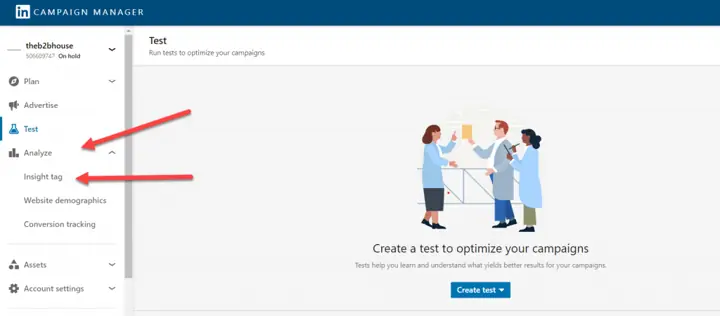
How to get a LinkedIn Insight Tag
Step 4: Click on the “Insight Tag” option
(Section heading only in the original guide.)
Step 5: Click on “Create Insight Tag”
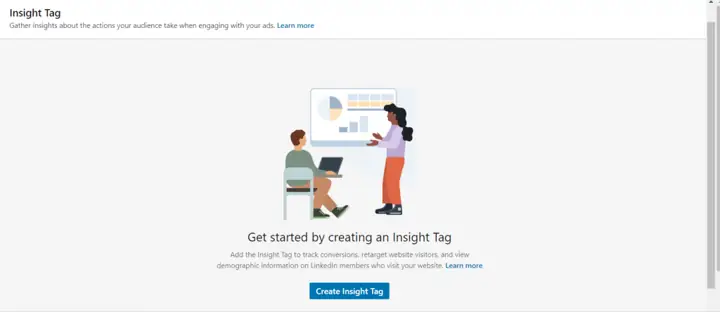
How to create an insight tag
Step 6: Click on the installation method for your tag
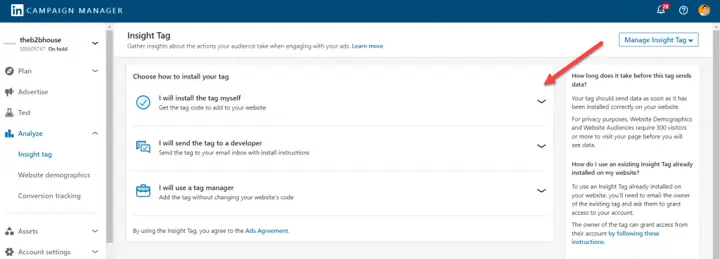
How to install a LinkedIn insight tag
Step 7: Get your LinkedIn Insight tag (pixel) number.
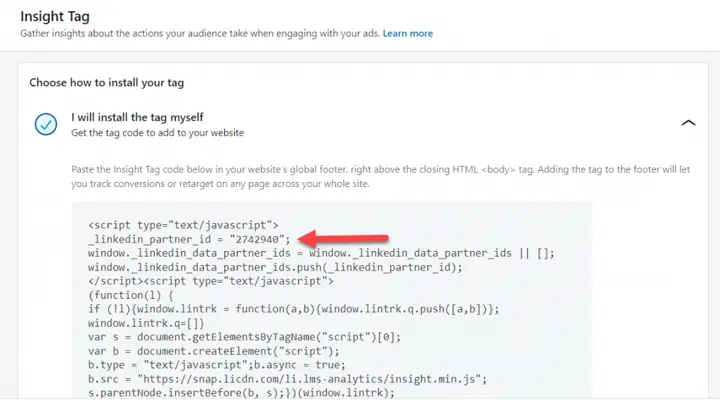
How to get the LinkedIn Pixel ID
The LinkedIn partner ID is also known as your LinkedIn insight tag ID or LinkedIn pixel ID. These terms are used interchangeably. Write down this ID as it will be useful when you are checking it’s installation.
How does LinkedIn insights tag work
The Insight Tag allows marketers to create cookies in the browsers of people who click on their LinkedIn Ads and land on their websites. They can then use these cookies to track the journeys from LinkedIn to their websites. The cookie collects information such as the website URL visited, IP address, device type, operating system, referral source, referring domain, and timestamp.
Once collected, the data is sent to LinkedIn and stored in the company’s database. LinkedIn states that the data is anonymous and does not include personally identifiable information. Reports and alerts about website visitors or ad performances do not include personal details of individual members. You’re able to retarget audiences who interacted with your website, although the personal identities are not provided.
If the web user lands on your web page from non-LinkedIn source, e.g. Facebook, you will still be able to retarget them or find out the professional background of the user if they have an existing LinkedIn cookie on their browser. This is also the reason why data will populate your LinkedIn website demographics report even though you are not running ads. One of the use cases is to check the quality of traffic from other sources especially if you’re targeting B2B professionals.
Yes, these data validation, matching and retargeting capabilities are free.
How to Install The LinkedIn Insight Tag
Step 1: Go to your LinkedIn campaign manager
Open your campaign manager tool where the insight tag you want to share is located.
Step 2: Enter “Manage Insight Tag” dropdown and select “Manage Sharing”
Find and click on the Manage Insight Tag dropdown in the Analyze tab
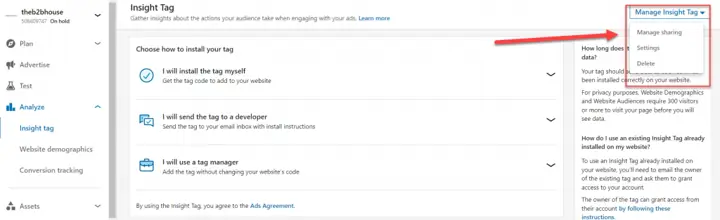
How to share a LinkedIn Insight Tag
Step 3: Select either Full Access or View-Only Access
Accounts with full access to the insight tag will also be able to edit and share you tag. Use this option if you want the ad account you’re sharing your tag with to have editing rights. Usually, if you’re working with agencies, you should grant the “use-only” access where accounts can still use your tag to track ad performance but won’t be able to edit and reshare your insight tag. Once you’ve selected your option, remember to click on “Save”
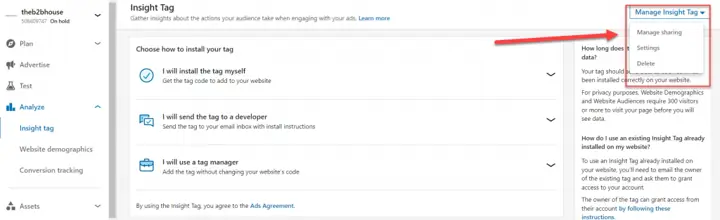
How to share a LinkedIn Insight tag with either full or view-only access
Retargeting on LinkedIn: How to do it with LinkedIn Insight Tag
Retargeting refers to targeting ads to audiences based on their demographics and behaviors on your website. This allows your ads to be more personalized, timely, and helpful to them. Companies have seen an increase of conversion rates by 20% when they implemented retargeting strategies.
While there are many retargeting possibilities, the LinkedIn insight tag specifically allows you to retarget your website audiences. This isn’t possible if the pixel is not installed. Here are a couple of steps for you to implement retargeting after you’ve installed your insight tag. Note that you’ll also need a minimum audience size of 300 tracked by LinkedIn before this function works due to data privacy laws.
Step 1: Access your campaign manager tool
You may access your campaign manager tool through the main LinkedIn home page in your profile.
Step 2: Select the Audience option under the “Plan” dropdown
Within your tool, you’ll find a “Plan” section in left column of options.
Step 3: Choose “Website” under the “Create audience”
There are many options for retargeting. Select retargeting based on website behaviors.
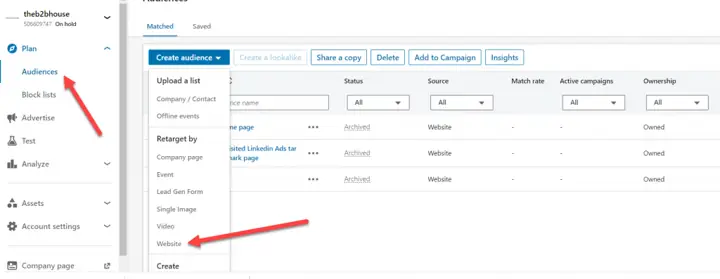
LinkedIn retargeting capabilities and tools
Step 4: Choose “Website” under the “Create audience”
Complete the details needed within in the next tab. I recommend using maximum 180 days. Include the URL you want to retarget next. This would refer to retargeting audience who lands on this URL specifically. There are also “AND” and “OR” Boolean options for you to either narrow or expand your retargeting audiences respectively.
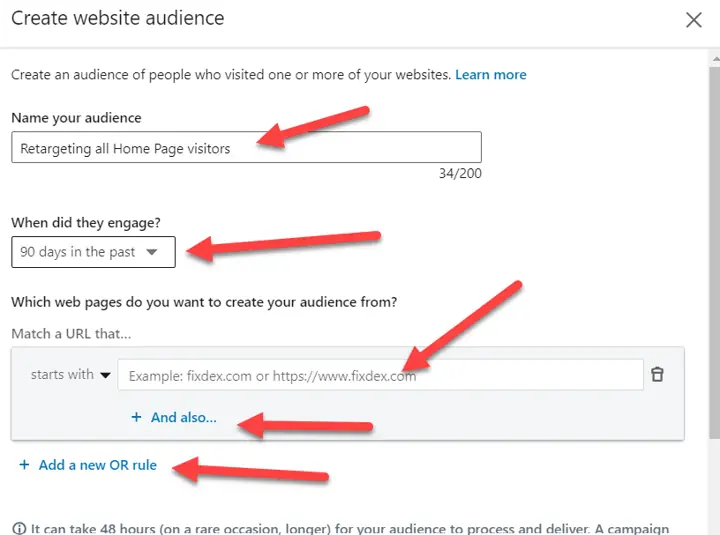
Complete retargeting details
How do I add/install my LinkedIn insight tag
There are 3 ways to install the LinkedIn pixel. You can either install the tag manually, send it to your web developer, or use a tag manager. I recommend using a tag manager tool like Google tag manager for ease of installation. Google tag manager specifically is free to use as well.
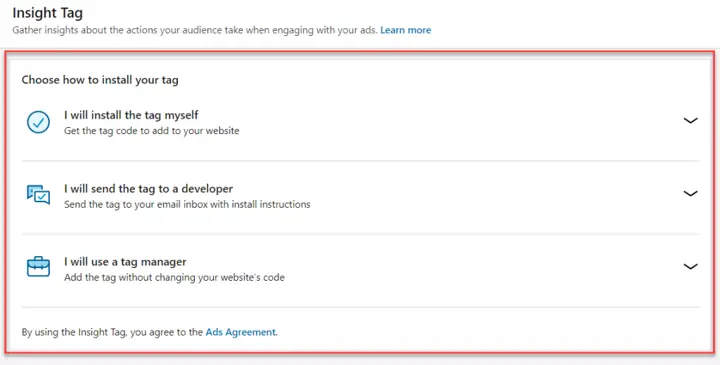
How to install the insight tag
Install the LinkedIn pixel Via Google Tag Manager
The advantage of this method is that you don’t have to add complex codes manually. You can add the tag without changing your website’s code. All you need is to find the Partner ID for your insight tag in your campaign manager tool and add it into your tag manager.

Depending on which tag manager, the documentation might be different. Here are some of the common tag managers you nay refer to:
How to add the LinkedIn tag manually through WordPress
Add the Insight Tag to your website’s global footer, just before the closing tag. Doing so will enable you to see which pages convert best and where you need to focus your efforts.
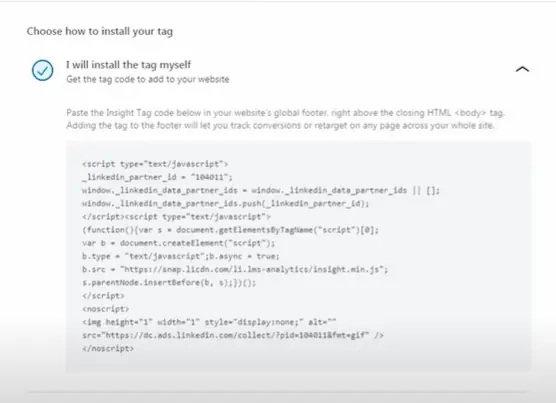
installing the tag through wordpress
Under the settings of the WordPress theme, paste the code you’ve taken from LinkedIn.
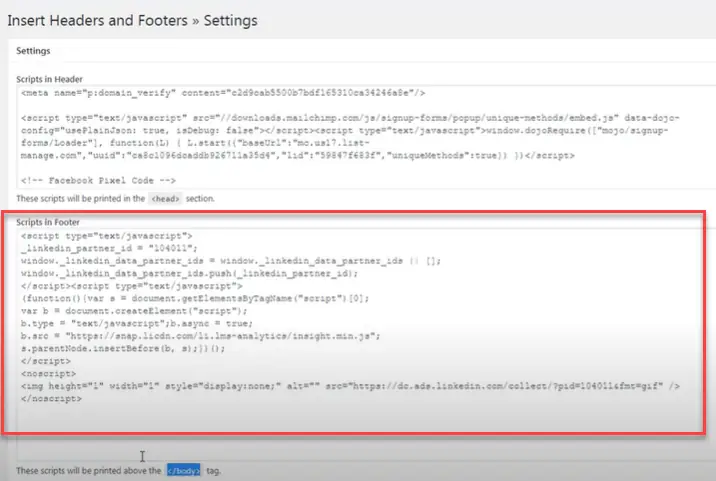
Pasting the LinkedIn Insight Tag Script in footer
How do I know if my LinkedIn insight tag is installed?
The best way to check is to use this web based LinkedIn pixel checker. It’s a one-click solutions which tells you whether the tag is installed correctly on your site.
How to check your LinkedIn Insight Tag
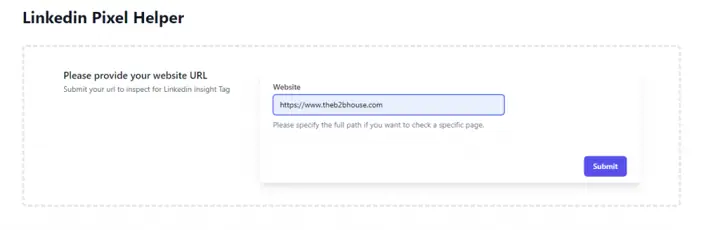
Input your website URL and click “Submit”
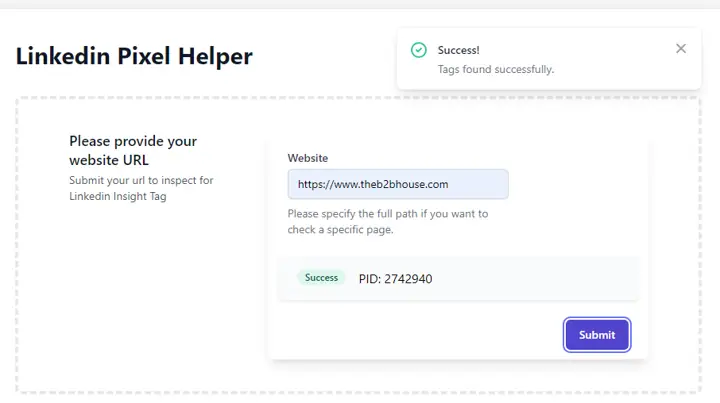
You should get a “Success” indication if your tag is installed properly with it associative Partner ID no. (PID)
Another manual, but not as accurate way, is to go to Campaign Manager, then Account Assets, and Insight Tag o check if there is an “active” label. If your Insight Tag is not yet activated, it will say “Not Active.” Click on the link to activate your Insight Tag. It may take up to 24 hours for the Insight Tag to be fully functional.
However, this method is not accurate because you can’t check specific pages and it only provides a generalized view.
You could also inspect the element of a specific URL and search for the pixel ID (PID) on the page.
How to set up LinkedIn conversion tracking with LinkedIn Insight Tag (Pixel)
LinkedIn conversion tagging is an analytic tool powered by the LinkedIn Insight tag. It allows you to track click throughs and view throughs from your LinkedIn ad campaigns, allowing you to measure the impact and return on investment (ROI) of your ads. There are 3 types of conversion tracking: page load, events specific, image pixel
How to track page load conversions
Once you have installed your pixel, you can track conversions whenever someone lands on a particular page. Assuming that you’re running a LinkedIn ad to drive webinar registrations, this method allows you to track anyone who lands on the “Thank you” page. Page load conversions are most commonly used. However, if your conversions are happening without a page load, you’ll require other methods of tracking, Which we will cover below.
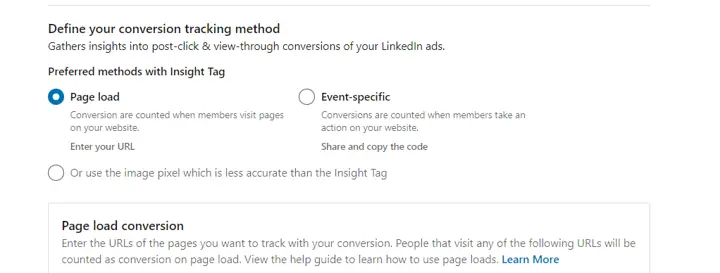
Setting up conversion tracking for LinkedIn
How to Track Event-Based Conversions and custom events
Use event-specific conversion tracking when conversions are counted when a member takes action on a website without needing to visit a particular page.
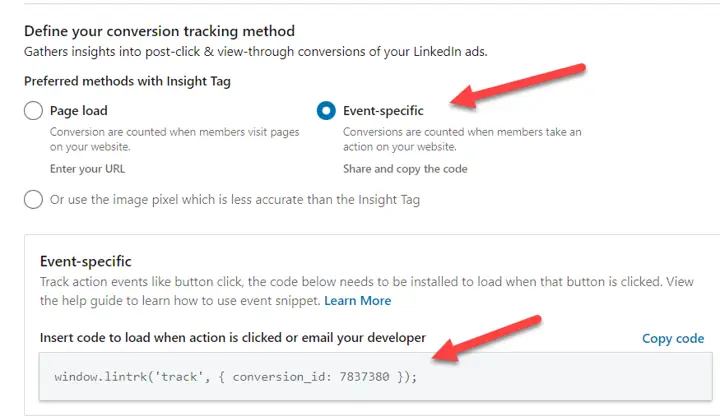
event specific conversion tracking
You can also track events like button click with the event-specific pixel. You’ll need to install this code on the button and ensure it fires off only when the button is clicked. Do note that you’ll need the insight tag already installed on this page first. Here’s also a video of how you can install the event tracking through google tag manager.
The future of LinkedIn insight tag and analytics
LinkedIn will continue to evolve their analytics capability. They host the largest gathering professionals in the world with over 800M+ audiences. As data privacy concern escalates, LinkedIn will continue to provide new solutions like first-party cookie.
However, we are entering a future where tracking will become increasingly challenging. A similar social media platform, Facebook, has reported a decrease in 10 billion in revenue for 2022 due to more stringent privacy policies. LinkedIn will undoubtedly be affected as well.
Instead of focusing too heavily on high-fidelity analytical tools, focus on building strong foundations for marketing. We’re referring to building a strong marketing strategy from proven content examples. Having a directional sense of the analytics is enough to make marketing decisions. Leaders don’t need to go deep into every single analytics aspect and spend hundreds of thousands building out analytical dashboards that aren’t ever accurate.
See also: B2B Brand awareness: The complete guide for 2022
• Tags:
• B2B Marketing Strategy
• Employer branding
• linkedin events
• linkedin marketing
• virtual events
LinkedIn Insight Tag: frequently asked questions
Is the LinkedIn Insight Tag free?
Yes. Creating and installing the tag, tracking conversions, building website audiences and using the Conversions API through a direct integration cost nothing on LinkedIn's side. You pay only for the ads you run, and some Conversions API partners charge fees.
Where do I find the LinkedIn Insight Tag in Campaign Manager?
Open your ad account, click Measure in the left menu, then Signals manager, then Insight Tag. If the account has no tag yet, review the LinkedIn Ads Agreement and click Agree & create (LinkedIn Help, 2026).
How do I check if my LinkedIn Insight Tag is working?
Check the source status in Signals manager: Active means LinkedIn has received a signal, Unverified means it hasn't. For a specific page, open developer tools, filter the Network tab for ads.linkedin.com and look for a 302 response. Status can take up to 24 hours to update after a visit.
How long does the Insight Tag take to become active?
From a few minutes to 24 hours after someone loads a tagged page. It stays Unverified until there is a visit, so load the page yourself after installing.
What is the LinkedIn partner ID?
The number that identifies your Insight Tag and the ad account that owns it. You need it to install the tag through Google Tag Manager or another tag manager, and you can find it in the page source after _linkedin_data_partner_id.
Can I use one Insight Tag for several ad accounts?
Yes. LinkedIn recommends one tag per website, shared with other ad accounts through Manage sharing with full access or use-only access. The receiving account can't already have its own tag.
What is the minimum audience size for LinkedIn website retargeting?
300 matched member accounts before the audience becomes active. Audiences only include visits from the day they are created and take up to 48 hours to process. Website Actions audiences can look back 30, 60, 90 or 180 days.
What are LinkedIn's conversion windows in 2026?
You can set click and view windows of 1, 7, 30 or 90 days, and the default is 90-day click, 90-day view. Conversions sent through the Conversions API or CSV uploads can use 180 or 365 days for lead, qualified lead, MQL, SQL, application and purchase types. Attribution is last touch, by each ad set or last ad set.
Do I need the LinkedIn Conversions API if I have the Insight Tag?
Not to start, but it is worth adding. The API sends conversions from your server or CRM without relying on cookies, can send offline and pipeline events, and LinkedIn deduplicates it against the tag. A partner integration is quickest; a direct build takes two to four weeks on average.
Is the LinkedIn Insight Tag GDPR compliant?
It can be used compliantly, but LinkedIn makes advertisers responsible for their own compliance. In the EU, EEA, UK and Switzerland, load the tag only after marketing consent, mention LinkedIn in your privacy notice and keep it off pages with sensitive data. LinkedIn only matches members who have opted in there.
Does LinkedIn still have Website Demographics?
No. LinkedIn retired Website Demographics on 30 November 2023. To see the professional makeup of your visitors, build a website audience and open it in Audience Insights.
How we built this page, and every source
We started from every step and claim in The B2B House guide and every claim other sites link to it for (we checked its backlinks with Ahrefs). For each, we read LinkedIn's current Help Center articles, LinkedIn's developer documentation on Microsoft Learn and LinkedIn's legal pages on 14 November 2026. Where LinkedIn has removed a page, as with Website Demographics, we cite the best secondary source and say so. Kiin figures come from the Kiin Labs panel ($65M+ in LinkedIn spend, 1,000+ accounts), described in our method note. Corrections: [email protected].
- LinkedIn Help, LinkedIn Insight Tag
- LinkedIn Help, LinkedIn Insight Tag FAQs
- LinkedIn Help, Access your LinkedIn Insight Tag
- LinkedIn Help, Create and manage your Insight Tag
- LinkedIn Help, Add the LinkedIn Insight Tag to your website
- LinkedIn Help, Add the site-wide Insight Tag to Google Tag Manager
- LinkedIn Help, Tag management systems compatible with the Insight Tag
- LinkedIn Help, Share an Insight Tag across ad accounts
- LinkedIn Help, Troubleshoot the LinkedIn Insight Tag
- LinkedIn Help, Set up Conversion Tracking for Insight Tag conversions
- LinkedIn Help, Event-specific conversion tracking with Google Tag Manager
- LinkedIn Help, LinkedIn conversion window
- LinkedIn Help, Compare Campaign Manager conversions with third-party reporting
- LinkedIn Help, LinkedIn Conversions API
- LinkedIn Marketing API, Conversions API (updated 11 Nov 2026)
- LinkedIn Help, Get started with LinkedIn website retargeting
- LinkedIn Help, Create a retargeting audience using Website Actions
- LinkedIn Help, Data collection and storage for Matched Audiences
- LinkedIn Help, Target audience size best practices
- LinkedIn Help, Lookalike audiences have been discontinued
- LinkedIn Help, Demographics for your LinkedIn Ads
- LinkedIn Help, LinkedIn Marketing Solutions and the GDPR
- LinkedIn Help, Data from others: Insight Tag and Website Actions
- LinkedIn, Cookie Table
- LinkedIn Pressroom, About Us
- B2Linked, Repurposing Website Demographics
- Business Standard, Apple iOS privacy changes will cost Meta $10 billion in 2022, Feb 2022
- Kiin Labs, LinkedIn Ads Benchmarks 2026 and LinkedIn Ads statistics
Ilic, P. (2026). LinkedIn Insight Tag 2026: How to Install, Verify and Use It. Kiin Labs (incorporating The B2B House). kiin.co/blog/linkedin-insight-tag. Free to cite with a link.
Not sure your LinkedIn tracking is right? Send read access to your LinkedIn Ads account and we'll check your Insight Tag, conversion rules and windows, and show you what a demo should cost you against 1,000+ connected accounts. Free, read-only, one page.